Friday, March 28, 2014

Extract WhatsApp History from iPhone Backup to Android

Lost your iPhone and now looking for a way to extract WhatsApp Chat History from iPhone backup to an Android Phone? As long as you have once backed up your iPhone with your iTunes on computer, Backuptrans iPhone WhatsApp to Android Transfer provides a good choice to transfer WhatsApp Messages from iTunes backup to Android phone directly even without your iPhone connected. All the WhatsApp Messages in iPhone backup will be transferred and merged perfectly on your Android Phone. No other WhatsApp transferring utility software can do this.


Tutorial shows you how to copy whatsapp messages from itunes backup to android step by step:


Step 1: Run Backuptrans iPhone WhatsApp to Android Transfer and connect your Android Phone to computer with USB cable.

Step 2: If a message pops out on your Android phone’s screen, please click "Back up my data" button without entering password. Then back to the software on computer to click "OK" to continue.Then software will read all WhatsApp chat messages from your Android Phone and show them on its main interface.

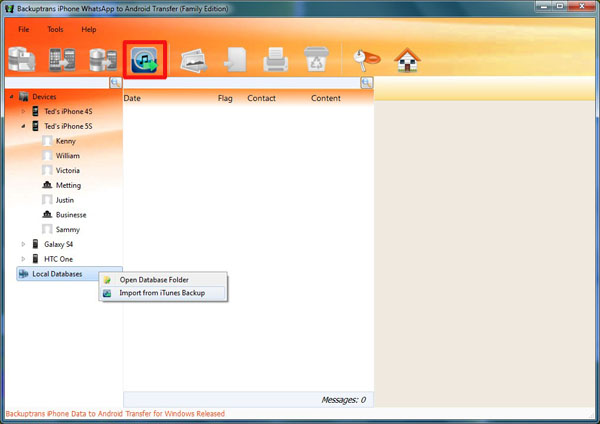
Step 3:Turn to top tool bar and press "Import from iTunes" button or go File -> Import from iTunes. Then the software will scan and detect all iTunes backup files on your computer automatically. Select your iPhone Backup on list and then click "Load" button to finish.

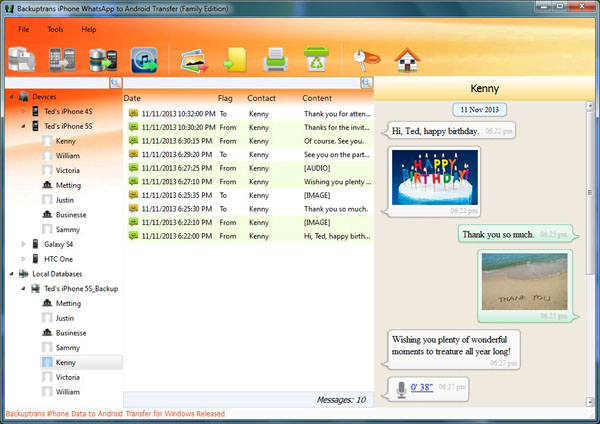
Step 4:Select a database to save chat messages. Or, simply enter a new database name to ceate a new database. Click Confirm to continue. Then you can view the WhatsApp chat Messages which have been imported from your iTunes Backup on Backuptrans software.


Step 5: Click the backup file in Local Database list. Turn to top toolbar and press "Transfer Messages from Database to Android" button or go File -> Transfer Messages from Database to Android.
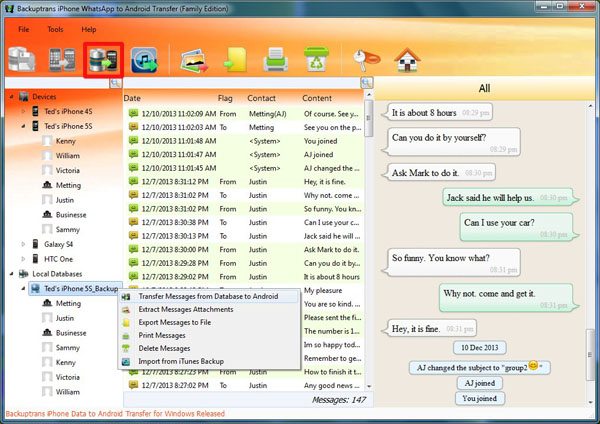


Step 6: Select a target Android Phone that you want to transfer WhatsApp chat history to. Click Confirm to continue.


Done! All your WhatsApp Chat History in iPhone backup have been transferred to your Android Phone.

Free download Backuptrans iPhone WhatsApp to Android Transfer on your computer to try.

If you are using Mac, please download Backuptrans iPhone WhatsApp to Android Transfer for Mac instead.

Related:
 How to Transfer WhatsApp Messages from iPhone to Android?
 How to transfer SMS and MMS to Android from iTunes backup?
 How to Transfer Data from iPhone to Android Smoothly?
 How to Backup WhatsApp Messages from Android to Computer?
 How to Transfer WhatsApp Messages between Android and iPhone?



Thursday, March 20, 2014

How to Print WhatsApp Chat Messages on Android Phone

Want to print Android WhatsApp Messages for a court or something? Backuptrans Android WhatsApp Transfer provides a simple & effective solution to print WhatsApp Chat Messages with attachments from Android Phone directly computer. Reading the printing output feels like the same as that on your Android Phone. You can even choose to print out all WhatsApp Conversations or just print the Messages with a certain contact.


Simple tutorial shows you how to print whatsapp messages from android on computer:

Step 1: Run Backuptrans Android WhatsApp Transfer and connect your Android Phone to computer with USB cable.

Step 2: If a message pops out on your Android phone’s screen, please click "Back up my data" button without entering password. Then back to the software on computer to click "OK" to continue.

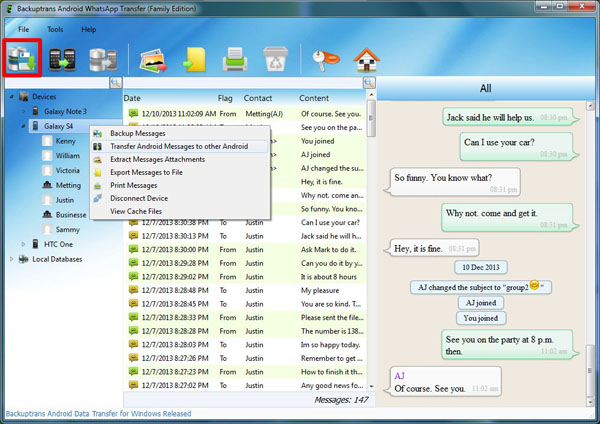
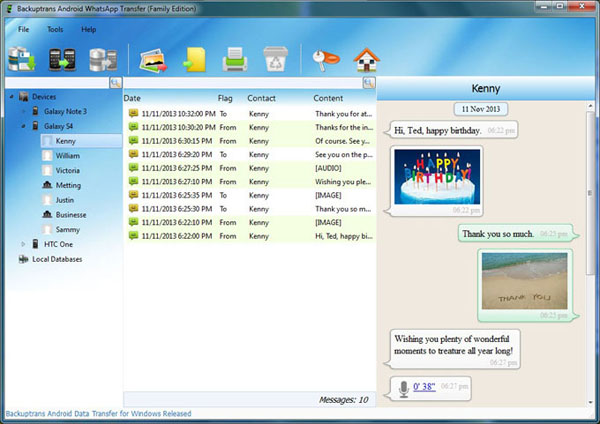
Step 3: Now the software will read all WhatsApp chat messages from your Android and show them on its main interface:


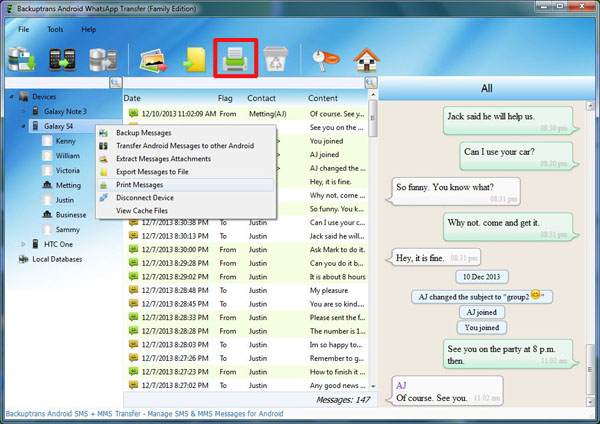
Step 4: Click the Android in Devices list you want to print WhatsApp Messages from. Then turn to top tool bar and press "Print Messages" button or go File -> Print Messages.


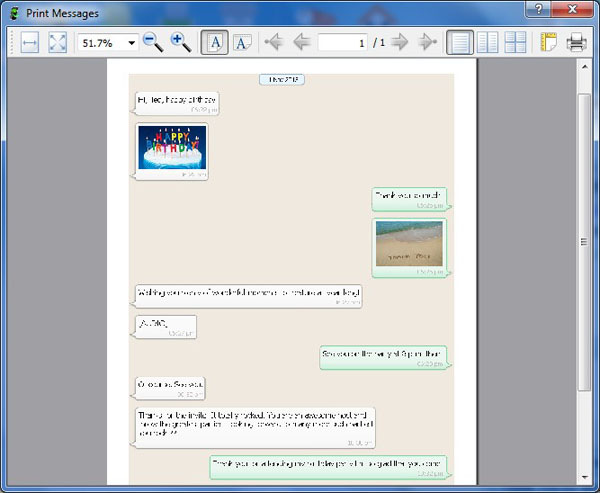
Step 5: Preview WhatsApp Chat Hisotry before printing. You will see the messages in conversations mode.


Step 6: Simply click the Print icon to print Messages out.

Done!  Free download Android WhatsApp Transfer on your computer to try now.

Related:
 How to Backup WhatsApp Messages from Android to Computer?
 How to Transfer WhatsApp Messages between Android Phones?
 How to Restore WhatsApp Chat History to Android from Computer?
 How to Transfer and Backup Data from Android to Computer in Clicks?
 How to Transfer WhatsApp Messages between Android and iPhone?

Tuesday, March 18, 2014

Transfer WhatsApp History between iPhone and Android Phone

Got lots of WhatsApp Chat Messages on Android & iPhone and now want to share chat history between different devices(Android and iOS)? Backuptrans Android iPhone WhatsApp Transfer + must be the best WhatsApp migrating software which lets you transfer WhatsApp chat history with attachment between iPhone and Android Phone directly on computer. Just connect both your iPhone and Android to computer and click the "Transfer" button, and you will get it done in a few seconds. All WhatsApp Messages will be transferred and merged perfectly on new Phone.


Features:
1 Backup WhatsApp Chat History from Android/iPhone to PC
2 Restore WhatsApp Chat History from Computer to Android/iPhone
3 Transfer WhatsApp Messages between Android and iPhone
4 Recover WhatsApp Messages from iTunes Backup to Android/iPhone
5 Export WhatsApp Messages to document file(Txt, Csv, Doc, Html, PDF)
6 Print out WhatsApp Messages in conversations on PC
7 Extract WhatsApp pictures videos audios etc attachments on PC
8 Support iPhone, Samsung, HTC, Motorola, Sony Ericsson, LG, Huawei and More

Detail tutorial: How to transfer WhatsApp Messages between Android and iPhone?
Free download the program to try now.

Related:
 How to Transfer Data betweem Android and iPhone in Clicks?
 How to Transfer SMS Messages between Android and iPhone on Computer?


Sunday, March 16, 2014

Backup Android WhatsApp Chat History to Computer Easily

Got lots of WhatsApp chat messages on your Android Phone and want backup them on computer? Backuptrans Android WhatsApp Transfer provides a convenient way to backup Android WhatsApp Chat History onto computer. You can save WhatsApp Messages in conversations on your computer in one simple click. All popular Android phones such as Samsung Galaxy S2, Samsung Galaxy S3, Samsung Galaxy S4, Samsung Galaxy Note 2, Samsung Galaxy Note 3, HTC One, Motoroal Moto X, LG Nexus 5 etc are supported.

Simple tutorial shows you how to backup WhatsApp Messages from Android to Computer step by step:

Step 1: Run Backuptrans Android WhatsApp Transfer and connect your Android Phone to computer with USB cable.

Step 2: If a message pops out on your Android phone’s screen, please click "Back up my data" button without entering password. Then back to the software on computer to click "OK" to continue.

Step 3: Now the software will read all WhatsApp chat history from your Android and show them on its main interface:


Step 4: Click the Android in Devices list you want to backup WhatsApp Chat History from.Turn to top tool bar and press "Backup Messages" button or go File -> Backup Messages


Step 5: Select a database to save your WhatsApp chat messages. To create a new database for your Android, simply enter a new database name. Click Confirm to continue.

Done! All your Android Whatsapp chat messages have been transferred and saved on your computer. Now you can view, export or print Android WhatsApp Messages direclty on PC. Free download the software on your computer to try now.

Related:
 How to Transfer WhatsApp Messages between Android Phones?
 How to Restore WhatsApp Chat History to Android from Computer?
 How to Transfer and Backup Data from Android to Computer in Clicks?
 How to Transfer WhatsApp Messages between Android and iPhone?
Friday, March 14, 2014

Transfer & Merge WhatsApp History from iPhone to Android

Got lots of WhatsApp Chat History on your iPhone and now want to transfer WhatsApp History from iPhone to Android Phone? Backuptrans iPhone WhatsApp to Android Transfer must be the best WhatsApp migrating software which lets you transfer WhatsApp Chat Messages with attachment files from iPhone to Android directly on computer. These iPhone WhatsApp Messages will be merged perfectly on Android Phone. No other WhatsApp transferring utility software can do this.


Simple tutorial shows you how to transfer WhatsApp Messages from iPhone to Android step by step:


Step 0: Before you run the software, please make sure you have installed iTunes 11.0 or above on your computer and your Android device has USB debugging enabled.

Step 1: Install the software on computer and run it Run Backuptrans iPhone WhatsApp to Android Transfer and connect your iPhone & Android Phone to computer with USB cable.

Step 2: If a message pops out on your Android phone’s screen, please click "Back up my data" button without entering password. Then back to the software on computer to click "OK" to continue.
Note: The software will backup WhatsApp data only from your Android phone.

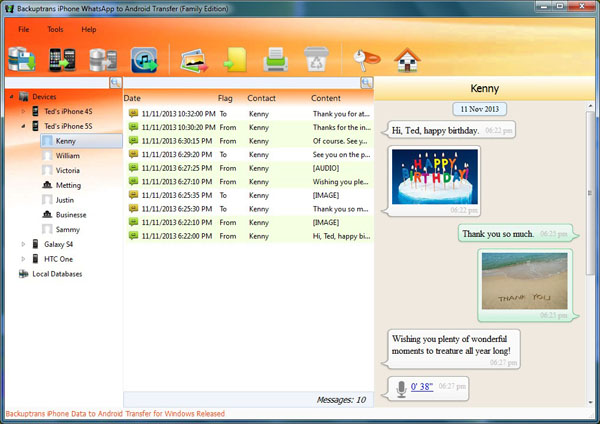
Step 3: View WhatsApp Chat History on software Now the software will read all WhatsApp chat messages from your iPhone & Android Phone and show them on its main interface:


Step 4:Click the iPhone in Devices list you want to transfer WhatsApp Chat History from.

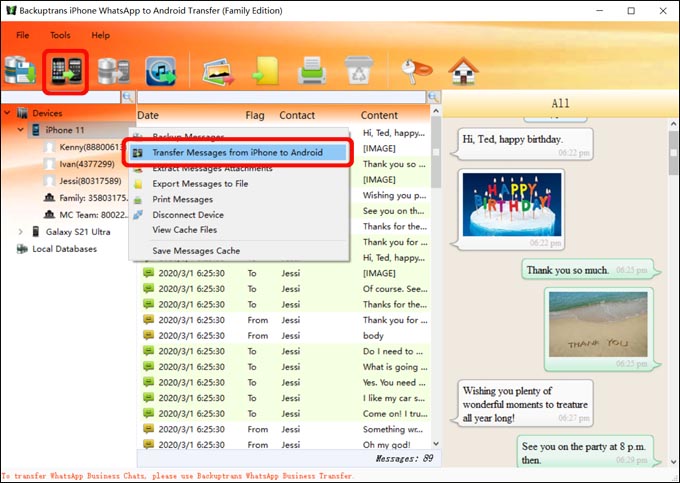
Step 5: Turn to top tool bar and press "Transfer Messages from iPhone to Android" button or go File -> Transfer Messages from iPhone to Android.
Tip: Or you can right click the Android in Devices list and then choose "Transfer Messages from iPhone to Android".


Step 5: Choose an Android Phone you want to transfer chats to Select a target Android Phone that you want to transfer WhatsApp chat history to. Click Confirm to continue.


Transferred successfully. All your iPhone Whatsapp chat history have been transferred and merged perfectly on your Android Phone.  You can even transfer chat conversations with a single contact from iPhone to Android.   Free download the software from your computer to try now.

Note: If you are using Mac, please use Backuptrans iPhone WhatsApp to Android Transfer for Mac.

Related:
 How to Copy WhatsApp Messages from iTunes Backup to Android?
 How to Transfer SMS and MMS from iPhone to Android?
 How to Transfer Data from iPhone to Android Smoothly?
 How to Transfer WhatsApp Messages between Android and iPhone?

 How to Backup WhatsApp Messages from Android to Computer?


Friday, February 14, 2014

Transfer Android WhatsApp Messages to iPhone 5S/5C Easily

Just get a new iPhone 5S or iPhone 5C and now want to transfer Android WhatsApp Messages to iPhone 5S/5C? Backuptrans Android WhatsApp to iPhone Transfer must be a good choice which lets you transfer WhatsApp Messages from Android to iPhone 5S 5C in only a few clicks. All these WhatsApp Chat History will be merged perfectly on your iPhone 5S/5C. All popular Android phones such as Samsung Galaxy S2, Samsung Galaxy S3, Samsung Galaxy S4, Samsung Galaxy Note 2, Samsung Galaxy Note 3, HTC One, Motoroal Moto X, LG Nexus 5 etc are supported.


The following tutorial shows you how to transfer WhatsApp Chat History from Android to iPhone 5C/5S step by step.

What Video:


Free download the software on your computer to try.

If you are using Mac, please download Android WhatsApp to iPhone Transfer for Mac instead.

Best luck!

Related:
 How to Transfer Android WhatsApp Chat History to iPhone on Mac?
 How to transfer Android SMS messages to iPhone smoothly?
 How to Backup WhatsApp Chat History from iPhone to Computer?


Friday, February 7, 2014

Transfer WhatsApp Chat History from Android to iPhone Easily

Just got a new iPhone and now want to transfer WhatsApp Messages on your Android Phone to the new iPhone? Backuptrans Android WhatsApp to iPhone Transfer is a smart WhatsApp migrating program which lets you transfer WhatsApp Chat History from Android to iPhone easily on computer. All these WhatsApp Messages will be merged perfectly on your iPhone.  The following tutorial shows you how to transfer WhatsApp Messages from Android to iPhone step by step:


Step 1: Run Backuptrans Android WhatsApp to iPhone Transfer and connect your Android & iPhone to computer with USB cable.

Step 2: If a message pops out on your android phone’s screen, please click "Back up my data" button without entering password. Then back to the software on computer to click "OK" to continue.


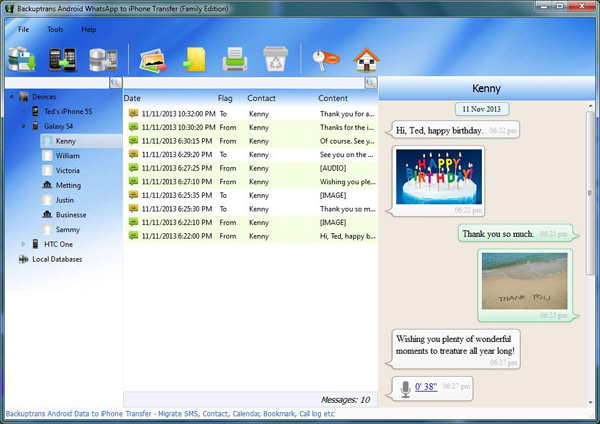
Step 3: Click the Android in Devices list you want to transfer WhatsApp Messages from.

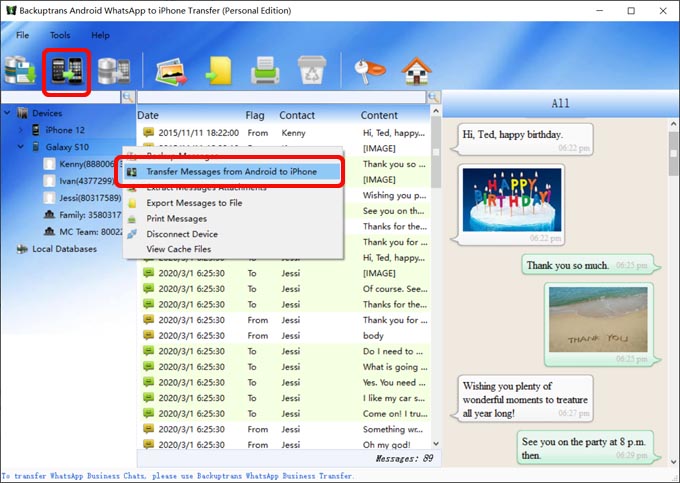
Step 4: Turn to top tool bar and press "Transfer Messages from Android to iPhone" button or go File -> Transfer Messages from Android to iPhone.


Step 5: Select a target iPhone that you want to transfer WhatsApp chat history to. Click Confirm to continue.

Done! Now you can see your Android WhatsApp conversation chats on iPhone.

Watch Video:


Free download Android WhatsApp to iPhone Transfer onto your computer and try.

If you are using Mac computer, please download Android WhatsApp to iPhone Transfer for Mac instead.

Best luck!

Related:
 How to Transfer Android WhatsApp Chat History to iPhone on Mac?
 How to transfer Android SMS messages to iPhone smoothly?
 How to Backup WhatsApp Chat History from iPhone to Computer?