Sunday, November 17, 2013

Transfer Data from one Android to another in Clicks

Many Android Phone users change their phones frequently and it is necessary to keep old Android data on the new phone. So is there an easy way to transfer data from one Android to another? Here you just need to take a few simple mouse clicks with the trustworthy Backuptrans Android Data Transfer. It lets you copy and transfer data between Android phones on computer directly. No technical knowledge required. Amazingly easy-to-use and yet most powerful.


Simple tutorial shows you how to transfer data from one android to another step by step:

Step 1: Run Backuptrans Android Data Transfer on computer and connect your Android Phones to computer using the USB cable. Then the software will automatically read data from Android Phones and show detail on its main interface.

Step 2-A: Transfer Songs, Videos, Photos, Camera rolls etc media files
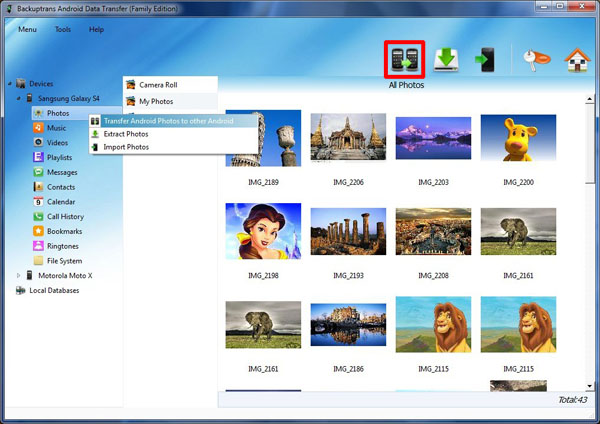
1) Click source Android on on Backuptrans left panel and then select "Music" "Video" or "Photo" section .
2) Turn to top toolbar and press "Android to Android" button.


Step 2-B: Transfer Messages(SMS & MMS), Contacts, Calendar events, Bookmarks and Call History
1) Click source Android and select "Messages" "Contacts" "Calendar" "Call History" or "Bookmarks" section.
2) Turn to top toolbar and press "Android to Android" button.
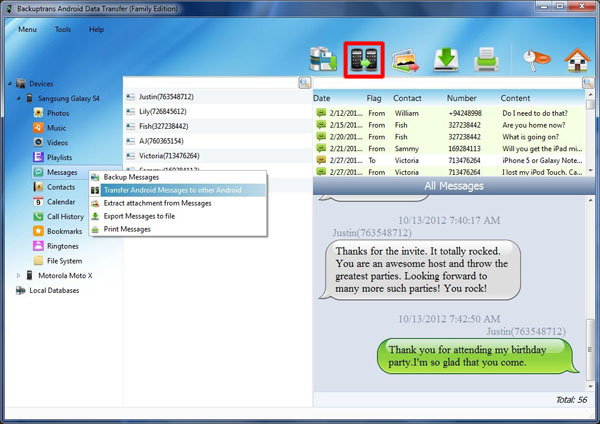

Step 3: Select target Android to transfer data to. Click Confirm to continue.

Done! All your Music, Movie, Photo, Playlist, Camera Roll, Message(SMS & MMS), Contact, Calendar, Call history, Bookmark have been transferred and merged perfectly on your new Android.

Free download Backuptrans Android Data Transfer on your computer to try now.

If you are using Mac, please click HERE to download Backuptrans Android Data Transfer for Mac.


Related:
 How to Transfer and Backup Data from Android to Computer in Clicks?
 How to Transfer Data Between iPhones on Computer?
 How to Transfer Data Between Android and iPhone?

Saturday, November 16, 2013

Transfer Data from one iPhone to another with ease

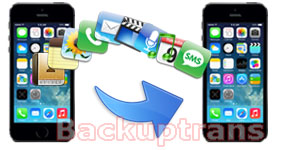
Want to copy and transfer data from one iPhone to another when you get a new iPhone? Backuptrans iPhone Data Transfer must be the ideal tool to easily transfer data between iPhones on computer? Various data such Music, Movie, Photo, Play list, Camera Roll, Ringtone, ePub, PDF, Audiobook, Voice Memo, Voicemail, Podcast, TV Show, Message, Contact, Note, Calendar, Call history and Bookmark are supported. All these data will be transferred and merged perfectly on your new iPhone.  All iPhone 5S/5C/5/4S/4/3GS are supported. If you are using Mac, you can use Backuptrans iPhone Data Transfer for Mac instead.


The following tutorial shows you how to transfer data from one iPhone to another directly on computer step by step:


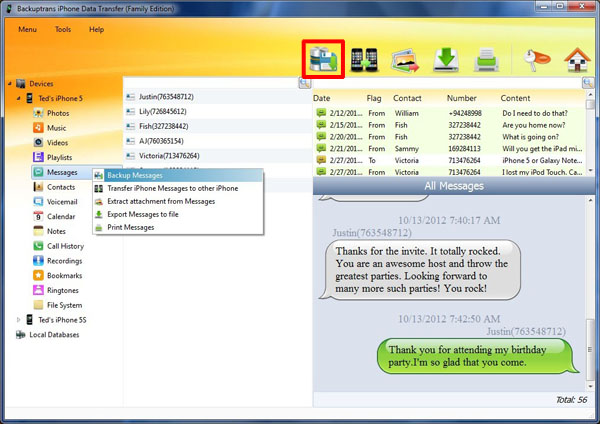
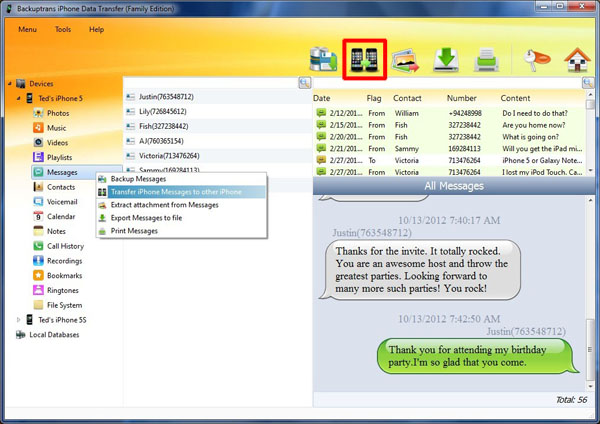
Step 1: Run Backuptrans iPhone Data Transfer on computer and connect your iPhones to computer using the Apple USB cable. Then the software will automatically read data from iPhones and show detail on its main interface.

Step 2-A: Transfer SMS Messages, Contacts, Notes, Calendar events, Bookmarks and Call History
1) Click the source iPhone and then select "Messages" "Contacts" "Calendar" "Notes" "Call History" or "Bookmarks" section.
2) Turn to top toolbar and press "iPhone to iPhone" button.
3) Choose a target iPhone you want to transfer data to, and then click Confirm to continue.
Done! Your SMS Messages, Contacts, Notes, Calendar events, Bookmarks and Call History have been merged pergectly on your new iPhone.


Step 2-B: Transfer Songs, Videos, Photos, Camera rolls etc media files between iPhones
1) Click the source iPhone on Backuptrans left panel and then select "Music" "Video" or "Photo" section.
2) Turn to top toolbar and press "iPhone to iPhone" button.
3) Select a folder on your computer to save the files. Then your songs, videos, photos etc will be saved on computer. (Currently the software can not transfer media files directly to iPhone. So you need to save the files on computer first)
4) Launch iTunes on computer to copy songs, videos, photos just saved on computer to your target iPhone. See detail tutorial on how to sync music video photo from computer to iPhone with iTunes.
5) Done!


Free download Backuptrans iPhone Data Transfer on your computer to try.

For Mac, please click HERE to download Mac version.

Related:
 How to Backup and Transfer Data from iPhone to Computer with ease?
 How to Transfer Data Between Android Phones on Computer?
 How to Transfer Data Between Android and iPhone?
Thursday, November 14, 2013

Copy and Transfer Android Data to Computer With Ease

Want to copy data from Android to computer for backup? Backuptrans Android Data Transfer must be a good choice which lets you transfer Android Data to computer easily.  You can choose to transfer Music, Movie, Photo, Playlist, Camera Roll, Ringtone, Message(SMS & MMS), Contact, Calendar, Call history, Bookmark etc. Wireless transferring files between Android and computer is also supported.

Unlike other Android Transfer programs(that can only copy data from Android onto computer), Backuptrans Android Data Transfer supports data restore also. You can restore SMS MMS Messages, Contacts, Calendar Events, Bookmarks, Call history and Play list from computer back to your Android any time you want.


The following tutorial shows you how to backup and transfer data from Android to computer step by step:


Step 1: Run Backuptrans Android Data Transfer on computer and connect your Android to computer using the USB cable. Then the software will automatically read data from Android and show detail on its main interface.

Step 2-A: Transfer and Backup Songs, Movies, Pictures, Camera rolls etc media files
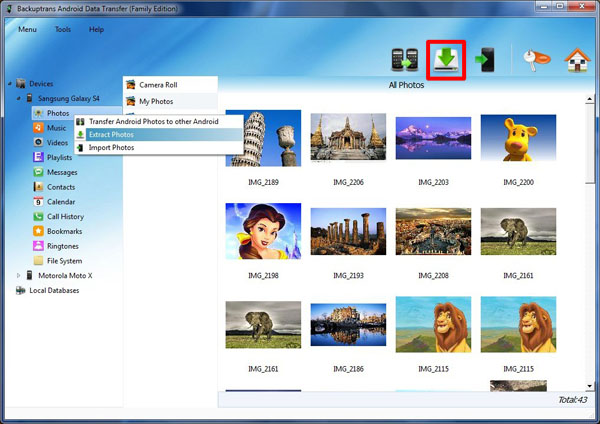
1) Select "Music" "Video" or "Photo" section on Backuptrans left panel.
2) Turn to top toolbar and press "Extract" button.


Step 2-B: Transfer Messages(SMS & MMS), Contacts, Calendar events, Bookmarks and Call History
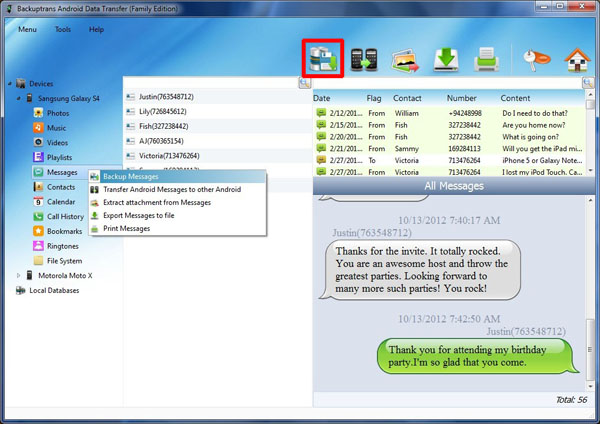
1) Select "Messages" "Contacts" "Calendar" "Call History" or "Bookmarks" section.
2) Turn to top toolbar and press "Backup to database" button.
3) Choose a database you want to backup data to. Click Confirm to continue.
Done! Your SMS MMS Messages, Contacts, Calendar events, Bookmarks and Call History etc have been saved on Backuptrans database.


How fast and easy. Free download Backuptrans Android Data Transfer  to try now.

Related:
 How to Copy and Transfer Data from Android to Mac Easily?
 How to Transfer Data Between Android Phones on Computer?
 How to Backup and Transfer Data from iPhone to Computer with ease?
 How to Transfer Data Between Android and iPhone?
Wednesday, November 13, 2013

[iPhone Backup Restore] Transfer Data between iPhone and Computer

Want to backup iPhone data such as songs, photos, viodes, messages, contacts etc to a new computer? Backuptrans iPhone Data Transfer offers a good and easy solution for all iPhone users to transfer iPhone Music, Movie, Photo, Playlist, Camera Roll, Ringtone, ePub, PDF, Audiobook, Voice Memo, Voicemail, Podcast, TV Show, Message, Contact, Note, Calendar, Call history, Bookmark, App data onto computer. 

Backuptrans iPhone Data Transfer not only supports iPhone Data to computer backup & export, but also enables users to restore data such as Message, Contact, Note, Calendar, Call history, Bookmark from computer database to iPhone, either a new iPhone or your old iPhone.

It even gives you great view on all iPhone data with smart File System mode. You can use the File System to copy and transfer files between iPhone and computer. If you are using Mac, you can use Backuptrans iPhone Data Transfer for Mac instead.


The following tutorial shows you how to transfer and backup data from iPhone to computer step by step:

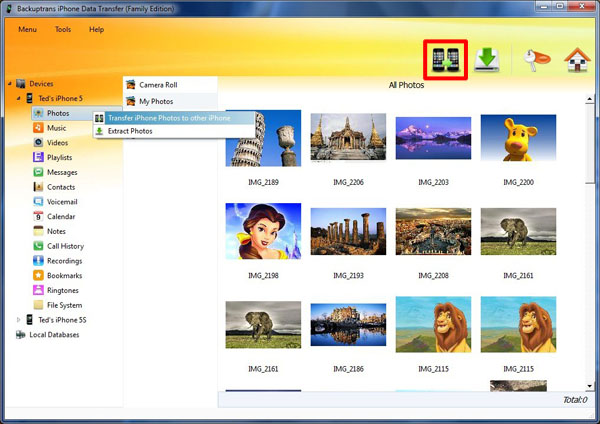
Step 1: Install the software on computer and run it Run Backuptrans iPhone Data Transfer on computer and connect your iPhone to computer using the Apple USB cable. Then the software will automatically read data from iPhone and show detail on its main interface.

Step 2-A: Backup and Transfer Songs, Videos, Photos, Camera rolls etc media files
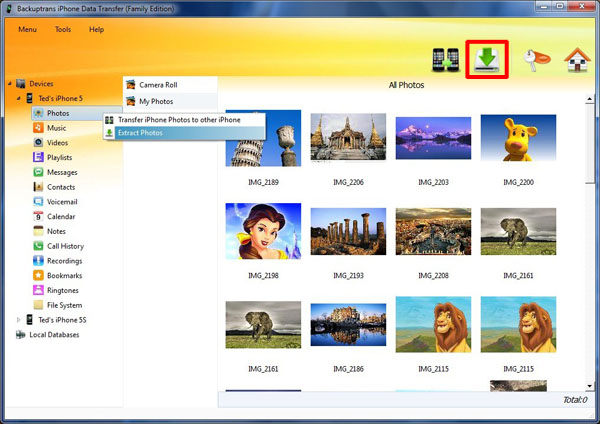
1) Select "Music" "Video" or "Photo" section on Backuptrans left panel.
2) Turn to top toolbar and press "Extract" button.


3) Select a folder on your computer to save the files.
Done! Your songs, videos, photos etc have been saved on computer.


Step 2-B: Transfer Messages(SMS & MMS), Contacts, Notes, Calendar events, Bookmarks and Call History
1) Select "Messages" "Contacts" "Calendar" "Notes" "Call History" or "Bookmarks" section.
2) Turn to top toolbar and press "Backup to database" button.


3) Choose a database you want to backup data to. Click Confirm to continue.
 Done! Your Messages, Contacts, Notes, Calendar events, Bookmarks and Call History etc have been saved on Backuptrans database.


So easy to finish. Free download Backuptrans iPhone Data Transfer on your computer to try.

For Mac, please click HERE to download Mac version software.

Related:
 How to Copy and Transfer Data & Files from iPhone to Mac?
 How to Transfer Data Between iPhones on Computer in Clicks?
 How to Transfer and Backup Data from Android to Computer?
 How to Transfer Data Between Android and iPhone?
Tuesday, November 12, 2013

Directly Transfer Data between Android and iPhone

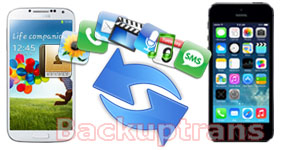
If you have one android and one iPhone, it's always wise to find a tool to help you share and transfer data between Android and iPhone.  Backuptrans Android iPhone Data Transfer + must be a good choice which lets you transfer data between Android and iPhone on computer in only a few clicks. You can choose to transfer Music, Movie, Photo, Playlist, Ringtone, Message, Contact, Calendar, Call history and Bookmark etc. All these data will be merged perfectly on your Android and iPhone. Transferring data between iPhones and Transferring data between Android Phones are also supported. If you are using Mac, please download Backuptrans Android iPhone Data Transfer + for Mac to use.


The following tutorial shows you how to transfer data between Android and iPhone step by step.

Run Backuptrans Android iPhone Data Transfer + on computer and connect your Android & iPhone to computer using USB cable. Then the software will automatically read data from Android/iPhone and show detail on its main interface.


Part One: Transfer Data from iPhone to Android
Step 1: Click source iPhone then select "Music" "Video" "Photo" "Message" "Contact" "Calendar" "Bookmark" or "Call History" section . 
Step 2: Turn to top toolbar and press "iPhone to Android" button.
Step 3: Select target Android to transfer data to. Click Confirm to continue.
Done! Your Android SMS Messages, Contacts, Calendar events, Bookmarks and Call History etc have been transferred and merged perfectly on your iPhone.


Part One: Transfer Data from Android to iPhone
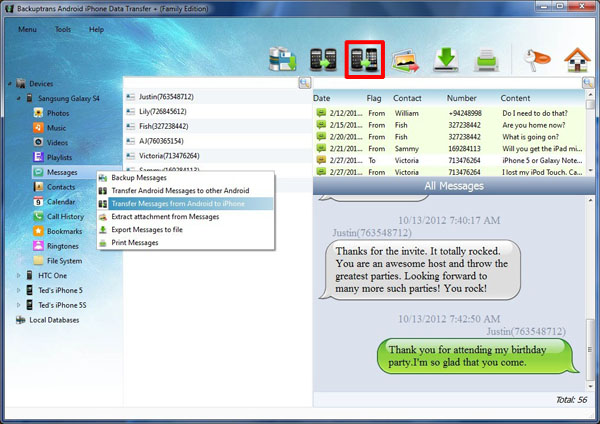
Step 1: Click source Android then select "Music" "Video" "Photo" "Message" "Contact" "Calendar" "Bookmark" or "Call History" section .
Step 2: Turn to top toolbar and press "Android to iPhone" button.
Step 3: Select target iPhone to transfer data to. Click Confirm to continue.
Done! Your iPhone SMS MMS Messages, Contacts, Calendar events, Bookmarks and Call History etc have been transferred and merged perfectly on your Android.


Free download Backuptrans Android iPhone Data Transfer + on your computer to try.

For Mac, please download Mac version from HERE.

Related:
How to Backup Data from Android & iPhone to Computer?

Monday, November 11, 2013

Directly Transfer Data from Android to iPhone on Computer(Win & Mac)

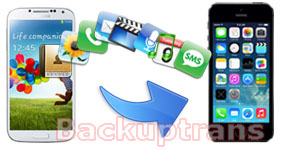
Just get a new iPhone and now want to switch data from Android to iPhone?  Now Backuptrans Android Data to iPhone Transfer can do this for you perfectly.  Backuptrans Android Data to iPhone Transfer is designed to transfer Data including Music, Video, Photo, SMS Message, Contact, Calendar, Call history, Bookmark etc from Android to iPhone directly on computer. Just connect both your Android and iPhone to computer and click the "Transfer" button, and you will get it done in a few seconds. All these data will be merged perfectly on iPhone.  If you are using Mac, simply download Backuptrans Android Data to iPhone Transfer for Mac to install.


The following tutorial shows you how to transfer data from Android to iPhone step by step:

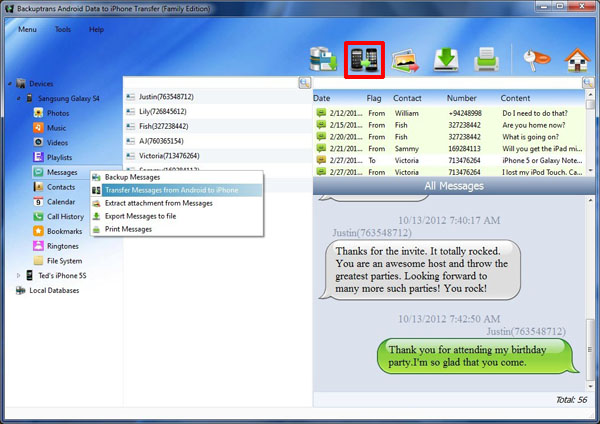
Step 1: Run Backuptrans Android Data to iPhone Transfer on computer and connect your Android & iPhone to computer using the USB cable. Then the software will automatically read data from Android & iPhone and show detail on its main interface


Step 2-A: Transfer SMS Messages, Contacts, Calendar events, Bookmarks and Call History
1) Select "Messages" "Contacts" "Calendar" "Call History" or "Bookmarks" section under Android device. 
2) Turn to top toolbar and press "Android to iPhone" button
3) Select target iPhone to transfer data to. Click Confirm to continue.


Step 2-B: Transfer Songs, Videos, Photos, Camera rolls etc media files
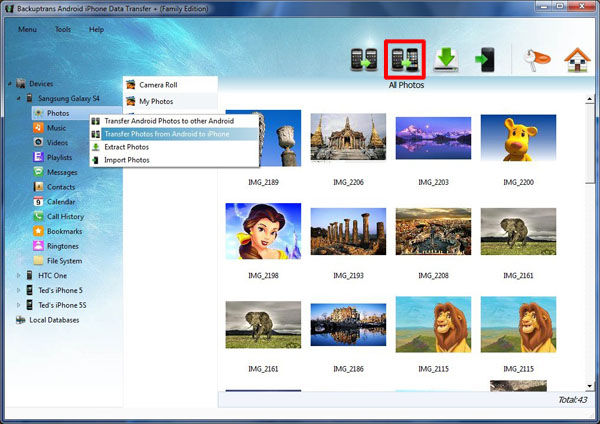
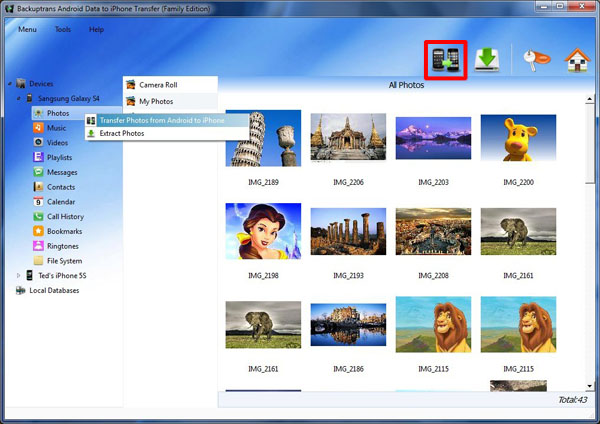
1) Click source Android on left panel and then select "Music" "Video" or "Photo" section . 
2) Turn to top toolbar and press "Android to iPhone" button.


3) Select a folder on your computer to save the files. Then your songs, videos, photos etc will be transferred and saved on computer.
    (Currently the software can not transfer media files directly to iPhone. So you need to save the files on computer first)
4) Launch iTunes on computer to copy songs, videos, photos just saved on computer to your target iPhone. See detail tutorial on how to sync music video photo from computer to iPhone with iTunes
5) Done!


Free download  Backuptrans Android Data to iPhone Transfer on your computer to have a try now.

For Mac, please download Mac version from HERE.

Related:
How to Transfer Data from iPhone to Android Smoothly?
How to Transfer Data Between Android and iPhone?
Best luck!

Sunday, November 10, 2013

How to Transfer Data from iPhone to Android in Clicks

"I get a new Android phone how to copy data from my old iPhone to Android?"  -Shelly

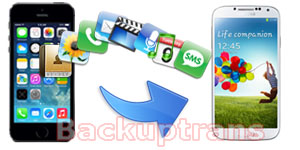
It it easy to do it with Backuptrans iPhone Data to Android Transfer. It is designed to transfer data including Music, Video, Photo, Playlist, Message (SMS & MMS), Contact, Calendar, Call history, Bookmark etc from iPhone to Android Phone directly on computer. All these data will be merged perfectly on your Android Phone.  Just connect both your iPhone and Android phone to computer and click the "Transfer" button, and you will get it done in a few seconds.  If you are using Mac, please download Backuptrans iPhone Data to Android Transfer for Mac to use.


The follow tutorial shows you how to transfer Data from iPhone to Android step by step:

Step 1: Run Backuptrans iPhone Data to Android Transfer on computer and connect your iPhone & Android Phone to computer using the USB cable. Then the software will automatically read data from iPhone & Android and show detail on its main interface.

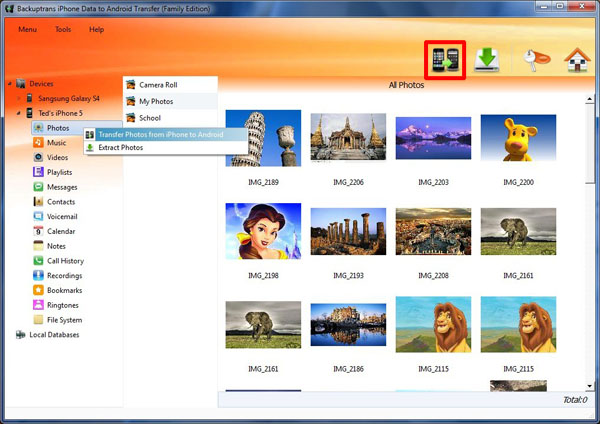
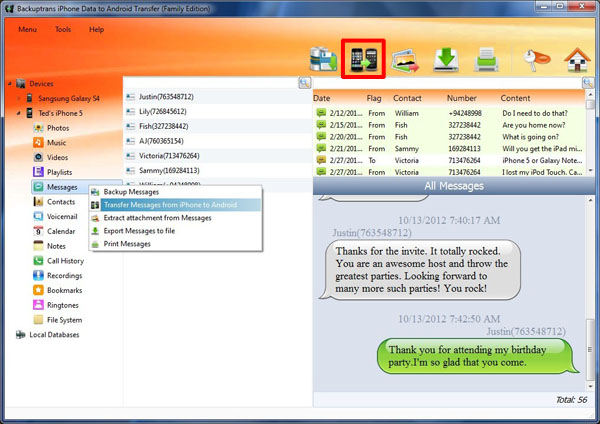
Step 2:  Click iPhone on Backuptrans left panel and then select "Music" "Video" "Photo" "Messages" "Contacts" "Bookmarks" etc section . 

Step 3: Turn to top toolbar and press "iPhone to Android" button.

    
Tip: Or you can right click the section under source iPhone and then choose "Transfer from iPhone to Android".


Step 4:  Select target Android to transfer data to. Click Confirm to continue.

Done! All your Music, Movie, Photo, Playlist, Camera Roll, Message(SMS & MMS), Contact, Calendar, Call history, Bookmark have been transferred and merged perfectly on your Android Phone.

Free download Backuptrans iPhone Data to Android Transfer on your computer to try.

For Mac, please use please use Backuptrans iPhone Data to Android Transfer for Mac.