Want to
backup iPhone data such as songs, photos, viodes, messages, contacts etc to a new computer?
Backuptrans iPhone Data Transfer offers a good and easy solution for all iPhone users to transfer iPhone Music, Movie, Photo, Playlist, Camera Roll, Ringtone, ePub, PDF, Audiobook, Voice Memo, Voicemail, Podcast, TV Show, Message, Contact, Note, Calendar, Call history, Bookmark, App data onto computer.
Backuptrans iPhone Data Transfer not only supports iPhone Data to computer backup & export, but also enables users to
restore data such as Message, Contact, Note, Calendar, Call history, Bookmark from computer database to iPhone, either a new iPhone or your old iPhone.
It even gives you great view on all iPhone data with smart File System mode. You can use the File System to copy and transfer files between iPhone and computer. If you are using Mac, you can use
Backuptrans iPhone Data Transfer for Mac instead.
The following tutorial shows you how to
transfer and backup data from iPhone to computer step by step:
Step 1: Install the software on computer and run it
Run Backuptrans iPhone Data Transfer on computer and connect your iPhone to computer using the Apple USB cable. Then the software will automatically read data from iPhone and show detail on its main interface.
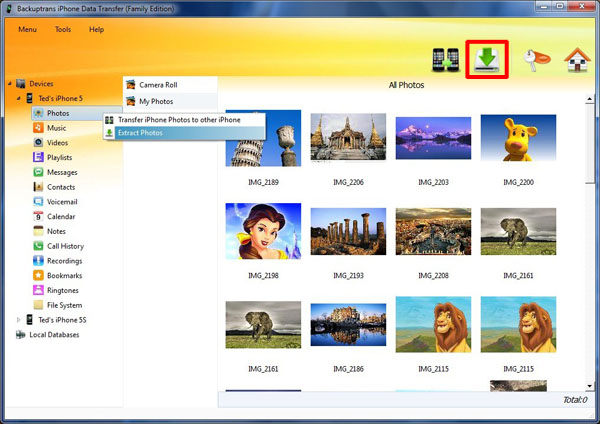
Step 2-A: Backup and Transfer Songs, Videos, Photos, Camera rolls etc media files
1) Select "Music" "Video" or "Photo" section on Backuptrans left panel.
2) Turn to top toolbar and press "Extract" button.
3) Select a folder on your computer to save the files.
Done! Your songs, videos, photos etc have been saved on computer.
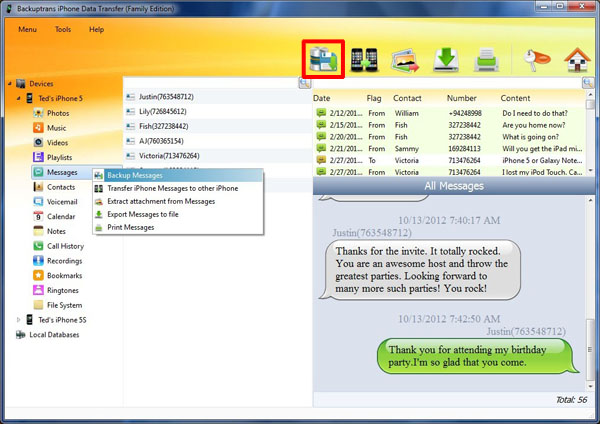
Step 2-B: Transfer Messages(SMS & MMS), Contacts, Notes, Calendar events, Bookmarks and Call History
1) Select "Messages" "Contacts" "Calendar" "Notes" "Call History" or "Bookmarks" section.
2) Turn to top toolbar and press "Backup to database" button.
3) Choose a database you want to backup data to. Click Confirm to continue.
Done! Your Messages, Contacts, Notes, Calendar events, Bookmarks and Call History etc have been saved on Backuptrans database.
So easy to finish.
Free download Backuptrans iPhone Data Transfer on your computer to try.
For Mac, please click
HERE to download Mac version software.
Related:
 How to Copy and Transfer Data & Files from iPhone to Mac? How to Transfer Data Between iPhones on Computer in Clicks? How to Transfer and Backup Data from Android to Computer? How to Transfer Data Between Android and iPhone?