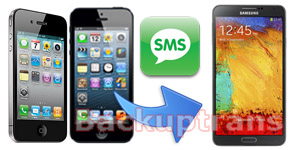
"I will buy the Samsung Galaxy Note 3. Is there a way to and sswitch data like contacts from iPhone?"
YES. Backuptrans iPhone Contacts to Android Transfer must be a good choice which can help you transfer Contacts from iPhone 3GS/4/4S/5 to Galaxy Note 3 Android Phone directly on computer. All iPhone contacts information will be transferred and merged on Galaxy Note 3 perfectly. You just connect both your iPhone and Galaxy Note 3 to Backuptrans software and then click the "Transfer Contacts" button and you will get it done in a few seconds.
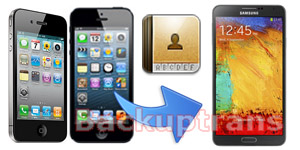
The following tutorial shows you how to transfer Contacts from iPhone to Galaxy Note 3 step by step:
Step 1: Run Backuptrans iPhone Contacts to Android Transfer and then connect iPhone and Galaxy Note 3 to computer with USB cable. Then the software will automatically read all contacts from your iPhone and Galaxy Note 3 and show them on its main interface:
Step 2: Click the iPhone 3GS/4/4S/5 in Devices list. Turn to top toolbar and press "iPhone to Android" button or go File -> Phone to Phone Transfer -> iPhone to Android.
Step 3: Select target Android (Galaxy Note 3) to save contacts. Click Confirm to continue.
Transferred successfully. All contacts have been transferred and merged onto your Galaxy Note 3.
Watch Video:
Free download this iPhone Contacts to Android Transfer on your computer to try.
If you are using Mac, please use Backuptrans iPhone Contacts to Android Transfer for Mac instead.
Related Guide:
How to transfer SMS MMS from iPhone to Galaxy Note 3?
How to transfer Music, Video, Photo, Message, Contact, Bookmark etc data from iPhone to Android?
Software to Backup and Transfer Android iPhone SMS, Contacts, Videos, Photos, Books etc on computer. You won't lose any data.
Showing posts with label iphone to galaxy note 3. Show all posts
Wednesday, September 11, 2013
Friday, September 6, 2013
Transfer and Copy SMS MMS from iPhone to Galaxy Note 3
"Will get a Samsung Galaxy Note 3 soon but how to copy SMS MMS Messages from my iPhone to Galaxy Note 3?"
To transfer and copy SMS MMS Messages from iPhone to Galaxy Note 3, Backuptrans iPhone SMS + MMS to Android Transfer is the amazing program to help you do it in only a few clicks. Backuptrans iPhone SMS + MMS to Android Transfer is designed to copy iPhone SMS MMS to Android phone directly from computer. Connect both your iPhone and Galaxy Note 3 to computer, and you will get it done in a few seconds. All SMS and MMS messages will be merged perfectly on your Galaxy Note 3.
The following article will show you how to transfer SMS MMS from iPhone to Galaxy Note 3 step by step:
Step 1: Run Backuptrans iPhone SMS + MMS to Android Transfer and connect both your Galaxy Note 3 and iPhone to computer with USB cable. Then the software will find devices connected and automatically show them in the Devices list.
Step 2: Click the iPhone in Devices list. Turn to top toolbar and press "Transfer iPhone SMS + MMS to Android" button or go File -> Transfer iPhone SMS + MMS to Android.
Step 3: Select target Android (Galaxy Note 3) to save messages. Click Confirm to continue.
Messages transferred successfully. All iPhone SMS Messages have been transferred and merged on your Galaxy Note 3.
Free download Backuptrans iPhone SMS + MMS to Android Transfer on your computer to try.
If you are using Mac, please use Backuptrans iPhone SMS + MMS to Android Transfer for Mac instead.
More guides:
How to Transfer Contacts from iPhone to Galaxy Note 3?
How to Transfer SMS MMS to Galaxy Note 3 from an Android Phone Directly?
Best luck!
To transfer and copy SMS MMS Messages from iPhone to Galaxy Note 3, Backuptrans iPhone SMS + MMS to Android Transfer is the amazing program to help you do it in only a few clicks. Backuptrans iPhone SMS + MMS to Android Transfer is designed to copy iPhone SMS MMS to Android phone directly from computer. Connect both your iPhone and Galaxy Note 3 to computer, and you will get it done in a few seconds. All SMS and MMS messages will be merged perfectly on your Galaxy Note 3.
The following article will show you how to transfer SMS MMS from iPhone to Galaxy Note 3 step by step:
Step 1: Run Backuptrans iPhone SMS + MMS to Android Transfer and connect both your Galaxy Note 3 and iPhone to computer with USB cable. Then the software will find devices connected and automatically show them in the Devices list.
Step 2: Click the iPhone in Devices list. Turn to top toolbar and press "Transfer iPhone SMS + MMS to Android" button or go File -> Transfer iPhone SMS + MMS to Android.
Step 3: Select target Android (Galaxy Note 3) to save messages. Click Confirm to continue.
Messages transferred successfully. All iPhone SMS Messages have been transferred and merged on your Galaxy Note 3.
Free download Backuptrans iPhone SMS + MMS to Android Transfer on your computer to try.
If you are using Mac, please use Backuptrans iPhone SMS + MMS to Android Transfer for Mac instead.
More guides:
How to Transfer Contacts from iPhone to Galaxy Note 3?
How to Transfer SMS MMS to Galaxy Note 3 from an Android Phone Directly?
Best luck!
Subscribe to:
Posts (Atom)