Sunday, September 11, 2016

Copy WhatsApp Messages from Samsung Galaxy Android to iPhone 7/iPhone 7 Plus

Ready to switch from Samsung Galaxy Android Phone to iPhone 7 or iPhone 7 Plus? You may be concerned about transferring all your WhatsApp chat messages. It used to be impossible to copy WhatsApp messages from Samsung Galaxy Android to iPhone 7/iPhone 7 Plus, but now Backuptrans Android WhatsApp to iPhone Transfer makes the task possible and smoothly.


Just take a look in the following tutorial on how to transfer WhatsApp Chats to iPhone 7/7 Plus from Galaxy S7/S6/S5/Note 5/4 effectively step by step:

1) Put the sim card on Samsung Galaxy Android Phone and keep WhatsApp Messenger available on Android.

2) Connect Samsung Galaxy Android Phone to Backuptrans software, click "Backup" button to backup all WhatsApp messages on local database.

3) Move sim card from Samsung Galaxy Android Phone to iPhone.

4) Install WhatsApp Messenger on iPhone and verify your phone number.

5) Connect iPhone to Backuptrans software to restore WhatsApp messages from local database.

Done!

Free download Android WhatsApp to iPhone Transfer to try now.

More guides:


Wednesday, September 7, 2016

Keep WhatsApp Chat History Safe When Updating iOS 10

Don't want to lose your WhatsApp Chat History on iPhone when updating iOS 10? In general, App data such as WhatsApp chats in iPhone will not erased when updating iOS to the latest version from an old version. But some iPhone users did lost these apps data when updating iOS. So to 100% sure your WhatsApp chat history is safe, you should take a look at this post on how to save whatsapp chat history when updating iOS 10.


A good way to keep your WhatsApp chat history safe is by using Backuptrans iPhone WhatsApp Transfer program to backup & restore WhatsApp chats. You can simple save all your chats messages from iPhone into computer. Then updating iOS 10. And then restore these chat messages back to your iPhone after updating. That is it.

Free download the program to try.


Related Articles:
 How to Transfer WhatsApp Chat History between iPhones Directly on PC?
 How to Transfer WhatsApp Messages between Android and iPhone?
 How to Backup Viber Chat Messages from iPhone to Computer?
 How to Transfer SMS & MMS & iMessage from iPhone to Computer?
 How to Backup Line chat history from iPhone to computer?

Saturday, August 20, 2016

Transfer WhatsApp Messages from iPhone/Android to Galaxy Note 7 in Clicks

"How to transfer WhatsApp Chat Messages from iPhone to my new Samsung Galaxy Note 7?" - Bodo

"Is there an easy way to copy WhatsApp chat history to Galaxy Note 7 from an old Galaxy S5?" - Lorenz


If you are looking for a way to migrate WhatsApp chat history to Samsung Galaxy Note 7 from your old iPhone or Android Phone, Backuptrans Android iPhone WhatsApp Transfer is a good choice. It lets you move all your WhatsApp chat messages with attachments to Samsung Galaxy Note 7 in only a few clicks. Please simply check this how to migrate WhatsApp chat history to Galaxy Note 7 from iPhone/Android tutorial. Easy to use software and no technical knowledge required.

Free download Android iPhone WhatsApp Transfer program to try.

Thursday, July 14, 2016

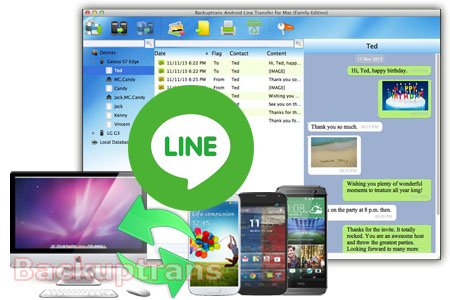
Backup, Restore and Transfer Line Chat History for Android

Want to backup, restore and transfer Line Chat History for your Android Phone on computer? Backuptrans Android Line Transfer offers a good solution for all Android Phone users to transfer Android Line Chat History onto computer. Unlike other Line Extractor programs(that can only copy Line Chat History from Android onto computer), Backuptrans Android Line Transfer not only supports Android Line Chats to computer backup & export, but also enables users to restore Line Chat Hisotry from computer database to Android, either a new Android or your old Android. That's why it makes it so easy for Android users to transfer Line chat history between Android Phones when switch to a new phone.


Main Features:
1 Backup Line Chat History from Android to Computer
2 Restore Line Chat History to Android from PC
3 Transfer Line Chat History between Android Phones directly
4 Export Line Chat Messages to document file(Txt, Csv, Doc, Html, PDF)
5 Print out Line Chat Messages in conversations on PC
6 Extract Line Pictures videos audios etc attachments to PC
7 Work perfectly for Samsung, HTC, Motorola, Sony Ericsson, LG, Huawei and More


This tutorial will show you how to Transfer Line Chat History from one Android to another step by step:


Step 1: Run Backuptrans Android Line Transfer on computer and connect your Android Phones to computer with the USB cable.

Step 2: Click the Android in Devices list you want to transfer Line chat history from.

Step 3: Turn to top tool bar and press "Transfer Messages from Android to Android" button.

Step 4: Choose a target Android Phone you want to transfer Line Chat History to, and then click Confirm to continue.

Done! Old Android Phone Line Chat history have be transferred and merged on new Android Phone.


Free download Backuptrans Android Line Transfer on your computer to try.
If you are using Mac, please download Backuptrans Android Line Transfer for Mac to use.

More guides:
* How to Backup Line Chat History from Android to Computer?
* How to Restore Line Chat History to Android from Computer?
* How to Transfer Line Chat History Between Android Phones?
* How to Transfer Line Chat History Between Android and iPhone?
* How to Backup WhatsApp Messages from Android to Computer?
* How to transfer Android SMS and MMS to computer?
* How to Backup Viber Chat History from Android to Computer?

Friday, June 24, 2016

Backup & Transfer Line Chat History from one iPhone to another In One Click

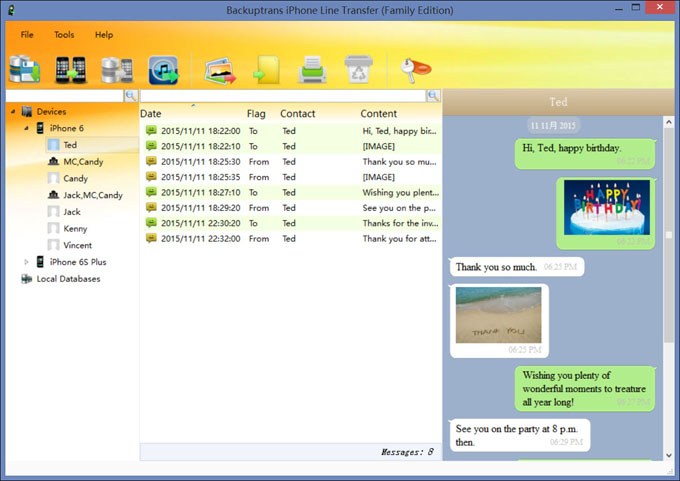
Looking for an easy way to copy Line chat history from your old iPhone to a new one? Backuptrans iPhone Line Transfer offers a good solution for iPhone users to easily transfer Line Chat History from one iPhone to another in only one click on computer. All your Line Chat Messages will be transferred and merged perfectly on your new iPhone. Transferring Line Chat Messages from old iPhone backup to the new iPhone is also supported. Easy to use an no technical knowledge required.


Backuptrans iPhone Line Transfer Features:
1 Backup and Restore iPhone Line chat history on Computer
2 Transfer Line chat history between iPhones directly
3 Recover Line chat history from iPhone Backup on Computer
4 Export Line chat messages to document file(Txt, Csv, Doc, Html, PDF)
5 Print iPhone Line chat messages in conversations on PC
6 Extract Line pictures videos audios etc attachments to PC
7 Work perfectly for all iPhone, iPad and iPod Touch

Tutorial on how to transfer line chat history between iPhones step by step:

Step 1: Run Backuptrans iPhone Line Transfer on computer and connect your iPhones to computer using the Apple USB cable.


Step 2: Click the iPhone in Devices list you want to transfer Line chat history from.

Step 3: Turn to top tool bar and press "Transfer Messages from iPhone to iPhone" button.

Step 4: Choose a target iPhone you want to transfer Line Chat History to, and then click Confirm to continue.

Step 5: Done! Old iPhone Line Chat Messages have be transferred and merged on new iPhone.


Free download Backuptrans iPhone Line Transfer on your computer to try. If you are using Mac, please download Backuptrans iPhone Line Transfer for Mac to use.
Related:
* How to Backup Line Chat History from iPhone to Computer?
* How to Restore Line Chat History to iPhone from Computer?
* How to Transfer Line Chat History Between Android and iPhone?
* How to Transfer WhatsApp Chat History Between iPhones on PC?
* How to Transfer SMS, MMS, iMessage Between different iPhones?
* How to Transfer Data between iPhones on Computer in Clicks?

Best luck!

Saturday, September 20, 2014

Transfer Messages to iPhone 6 Plus from old iPhone 4/4S/5/5C/5S Smoothly

Looking for way to transfer SMS, MMS, iMessage messages to Phone 6 Plus from your old iPhone 4/4S/5/5C/5S? Backuptrans iPhone SMS/MMS/iMessage Transfer must be a good choice which lets you transfer SMS & MMS & iMessage to iPhone 6 or iPhone 6 Plus from iPhone 5S/5C/5/4S/4 smoontly. All your old iPhone SMS, MMS, iMessage text messages with attachments will be copied and merged perfectly on new iPhone 6 Plus.  No other iPhone message transferring software can do this.


See the following tutorial:


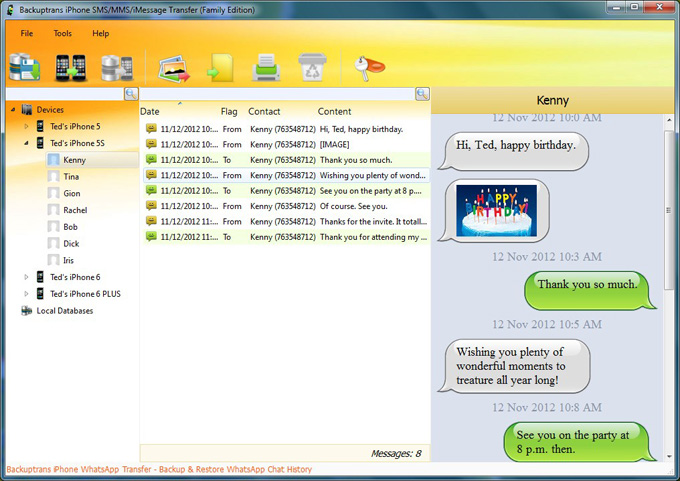
Step 1: Run Backuptrans iPhone SMS/MMS/iMessage Transfer and connect your iPhone 6/6 Plus and the old iPhone to computer with USB cable. Then the software will automatically read all SMS & MMS & iMessage messages from your iPhones and show them on its main interface:


Step 2: Click the old iPhone in Devices list you want to transfer messages from. Turn to top toolbar and press "Transfer iPhone Messages to other iPhone" button or go File -> Transfer iPhone Messages to other iPhone.

Step 3: Select your iPhone 6 Plus that you want to transfer SMS, MMS, iMessage to. Click Confirm to continue.

Transferred successfully. All your old iPhone 4/4S/5/5C/5S SMS, MMS, iMessages messages with media attached files have been transferred and merged perfectly on your new iPhone 6 Plus. Free download Backuptrans iPhone SMS/MMS/iMessage Transfer on your computer to try now.

If you are using Mac, please use Backuptrans iPhone SMS/MMS/iMessage Transfer for Mac instead.

Related:
 How to Copy WhatsApp History to iPhone 6 Plus/6 from iPhone 5S/5C/5/4S/4?
 How to Move SMS MMS from Android to iPhone 6/iPhone 6 Plus?
 How to Transfer Data between iPhones on Computer in Clicks?
 How to Backup and Restore iPhone Messages When Updating to iOS 8?


Backup & Restore iPhone SMS, MMS, iMessage When Updating iOS 8

Want to update your iPhone to the latest iOS 8? It is necessary to keep your iPhone SMS, MMS, iMessage safe when updating to iOS 8.  Backuptrans iPhone SMS/MMS/iMessage Transfer is a smart iPhone messages manage tool which can help you transfer iPhone SMS, MMS, iMessage with attachments smoothly on computer. With Backuptrans iPhone SMS/MMS/iMessage Transfer, you can easily backup iPhone messages onto computer before updating to iOS 8. Then restore all backed up messages back to your iPhone after updated to iOS 8. No message lost.


Tutorial shows you how to Backup and Restore iPhone Messages When Updating to iOS 8.

Free download Backuptrans iPhone SMS/MMS/iMessage Transfer and follow the tutorial to try.

For Mac, please download Backuptrans iPhone SMS/MMS/iMessage Transfer for Mac instead.


Related:
 How to Transfer SMS & MMS & iMessage to iPhone 6/iPhone 6 Plus from iPhone 5S/5C/5/4S/4?
 How to Copy WhatsApp History to iPhone 6 Plus/6 from iPhone 5S/5C/5/4S/4?
 How to Backup WhatsApp Chat History from iPhone to Computer?
 How to Backup Data(Message, Contact, Note, Music, Video, Photo, Bookmark, Call log etc) from iPhone to Computer?